
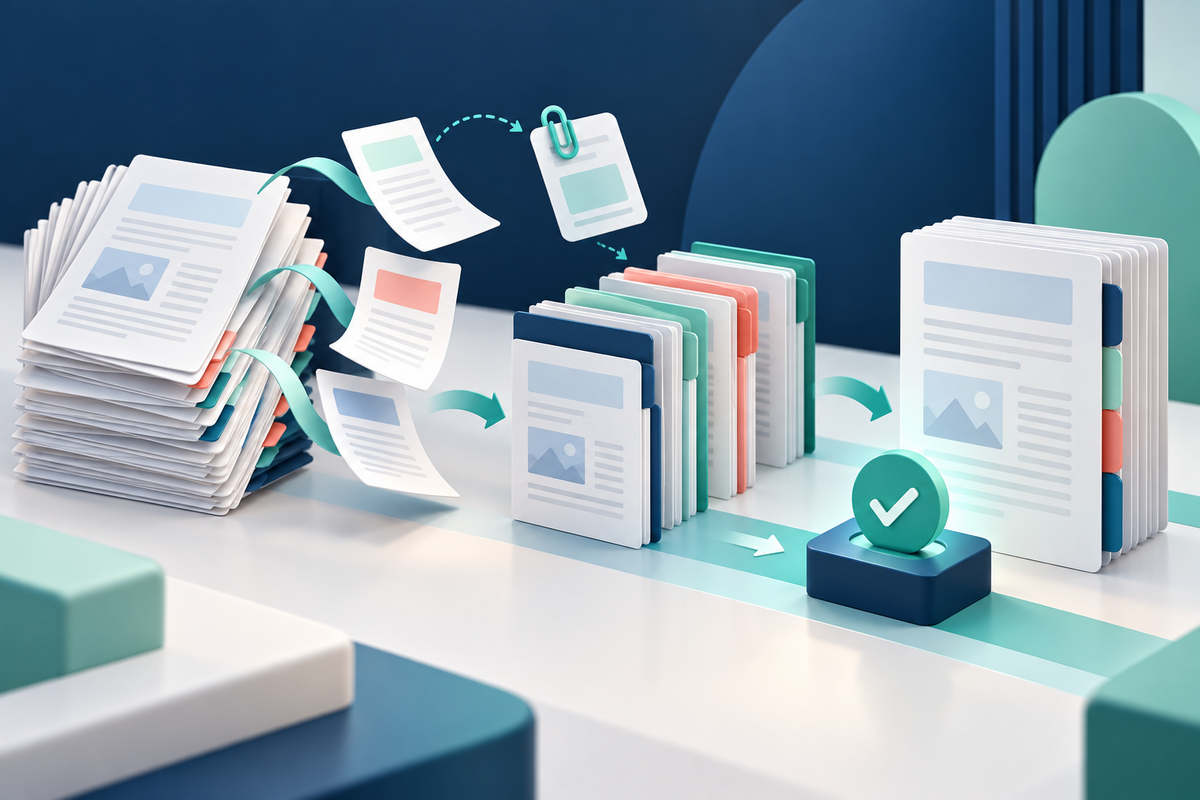
A prompt that turns one long PDF into several audience-specific files could save a team a repetitive editing session. Microsoft has now announced that kind of page-level work for Copilot in SharePoint—but the useful part of the workflow is not complete until someone verifies the files it produces.
What Microsoft announced
In its 1 October 2026 SharePoint update, Microsoft said Copilot in SharePoint can work with PDFs at page and section level. Its examples include extracting a section from an RFP, inserting a late attachment into a packet, reordering pages and splitting a document into separate files for different audiences. Microsoft said the general-availability rollout began on 30 September and that usage is included with a Microsoft 365 Copilot license.
Availability still needs checking in the actual organization. Microsoft support material can lag behind a product announcement, and one current overview still describes an administrator-controlled preview. Tenant settings, permissions, license and rollout stage may therefore affect what a particular user sees. Ask the Microsoft 365 administrator before making the feature part of a deadline-sensitive process.
A six-step review for reorganized PDFs
1. Preserve an untouched original. Keep the received PDF and record its filename or version before asking Copilot—or any editor—to change it. 2. Make the instruction testable. Name the section, attachment, order and intended audience. “Create a supplier copy containing pages 2–6 and the signed appendix” is easier to verify than “clean this up.” 3. Check page count and sequence. Compare the output with the source page by page. Look for duplicated, missing, rotated or blank pages and confirm that each extracted file starts and ends where intended. 4. Review document behaviour. Test links, bookmarks, form fields and attachments. Reordering or splitting can remove useful context, and editing a digitally signed PDF can invalidate its signature. 5. Treat exclusion and redaction differently. A file made from selected pages may still reveal sensitive text elsewhere on an included page. Splitting a PDF is not secure redaction, and covering text visually is not proof that its underlying data is gone. 6. Download and reopen the deliverable. Inspect the exact file that will be sent, ideally in a second viewer. Confirm its name, audience, permissions and storage location, then retain the approved version according to the organization's policy.
Where the manual tools still help
SharePoint and OneDrive also have documented Merge and Extract commands that do not depend on a conversational instruction. Microsoft's current setup guide says these commands can combine files or extract selected pages, with access depending on the relevant Microsoft licensing or SharePoint subscription. For predictable page operations, a visible selection step may be easier to review than a broad prompt.
FileStation is not connected to SharePoint or Copilot and cannot certify Microsoft's output. For an approved local copy, Organize PDF can help you inspect page order and rotation, while Why hiding text is not PDF redaction explains the extra care needed before sharing sensitive material.
The larger lesson is simple: natural-language PDF organization can reduce manual steps, but responsibility stays with the person who approves the final file. Keep the source, make the requested transformation specific and verify the downloaded result before it leaves the workspace.
Primary source: Microsoft, “What's new in Copilot in SharePoint: October 2026” (1 October 2026).