
A classification label can trigger access, retention or audit rules, so an automated label is more than a coloured tag. Google's Gemini-based classification for Drive is now generally available for eligible Workspace organisations. The useful advance is scale; the necessary safeguard is a controlled test and a person who can correct the result.
What Google released on 17 November
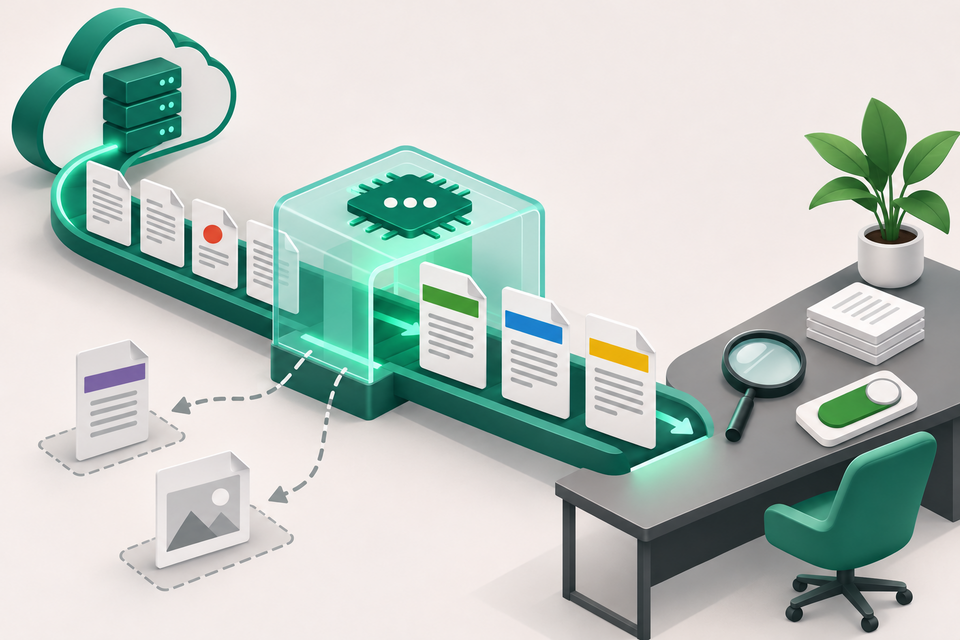
Google's Workspace announcement says administrators can describe a classification rule in natural language, preview the labels Gemini would apply and monitor near-real-time reporting after deployment. The system evaluates eligible Drive files and applies a selected classification label. Editors or owners with the right label permissions can accept or modify an automatically applied label, and audit logs record those actions.
The rollout began on 17 November 2026 and is expected to finish by 15 December. Google lists Enterprise Plus, Frontline Plus and Google AI Pro for Education as eligible editions. There is no end-user setting; configuration sits with administrators.
A review-first PDF classification pilot
1. Define the decision, not just the words. Start with one approved label whose effect is understood: for example, a label that informs a DLP rule or retention policy. Write instructions from the organisation's existing classification standard. Record the owner, scope, expected examples and what a false positive or false negative could change.
2. Test a representative set. Include ordinary PDFs, Office files, OCR scans, short documents, unusual templates and material close to the boundary between two categories. Google says high-quality verdicts typically need at least 50 words and 200 readable or OCR-extracted characters. Client-side encrypted files and non-text media without readable text are skipped. A skipped file needs a separate route; it is not evidence that the file is safe.
3. Compare labels with human decisions. Use the preview to review both matches and misses. Have authorised reviewers record why they agree, edit or reject a label. Avoid changing instructions after only one surprising file; look for a repeatable pattern and retain a small, stable regression set for the next test.
4. Deploy narrowly and watch the report. Google allows one active Gemini instruction model, although an organisation can create up to five AI classification models in total. Start with a controlled audience and monitor labelled-file counts and user acceptance. Review audit events and investigate unexpected changes before increasing scope.
5. Plan for the backfill. Auto-apply triggers a one-time scan of existing and inactive files. Google says it may start after one or two weeks and can take weeks or months. Updated instructions affect future uploads and new content; this release does not include on-demand rescanning of files already evaluated. Keep a dated change log so the same label does not hide different rule versions.
6. Treat the Drive label and the PDF as separate layers. A classification label is Drive metadata used by policies; do not assume a downloaded copy visibly carries that context. Before external sharing, confirm the approved channel, recipient, filename and final pages. Reopen the exact PDF and inspect sensitive content, attachments and page order.
Important limits
General availability does not make the classifier infallible or suitable for every file. Google says it will not overwrite labels applied manually, accepted or modified by users, or applied by DLP rules. Data-region handling and isolation from Google's global model training are useful service commitments, but they do not replace an organisation's own access, retention, legal and incident-response controls.
For an authorised distribution copy, FileStation's PDF Reader can support a page-by-page visual check, while Protect PDF can add a separate PDF password when that is part of the approved workflow. FileStation does not read Drive labels, enforce Workspace DLP or certify a file's classification.
The reliable pattern is automation for coverage, people for accountability, and a final check of the exact PDF that leaves the managed system.