
Comparing two document versions should answer a simple question: what changed? In practice, a clean wording review can still miss a shifted table, altered column width or bad page break. Google Docs now reduces one source of friction by comparing Microsoft Word files directly, but the editable comparison and the final PDF still need different checks.
What Google released on 16 November
Google's Workspace announcement says the Compare documents tool now supports Microsoft Word `.docx` files without requiring conversion first. The feature is available now, has no administrator control and is listed for all Workspace customers, Workspace Individual subscribers and personal Google accounts.
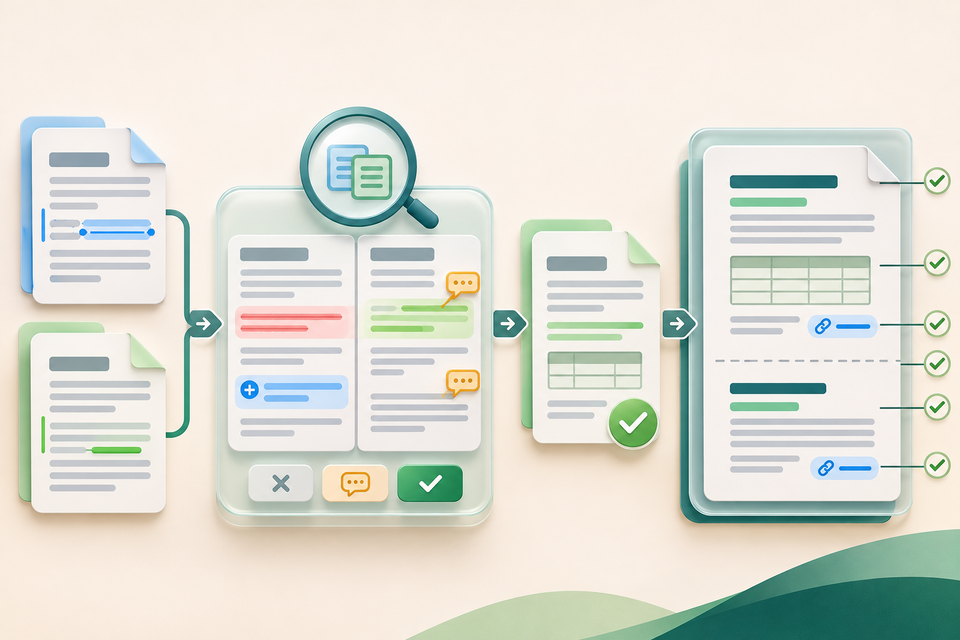
To use it on a computer, open the primary document in Google Docs, choose Tools > Compare documents, then select the other `.docx` file from Drive. Google's comparison help page says the Word file must be stored in Google Drive. The process creates a third Google Doc that represents the differences as suggested edits. The reviewer can attribute those suggestions to a chosen name or label and optionally bring comments from the selected document into the comparison file.
A controlled Word-to-PDF review
1. Identify the versions before comparing. Record each filename, owner, revision date and purpose. Keep the originals read-only or in a controlled folder. “Final” and “final-new” are not reliable version labels.
2. Choose the primary document deliberately. Decide which version is the baseline and which contains proposed changes. Confirm that both files cover the same report, contract or policy period before interpreting the differences.
3. Review every suggested edit. Check names, dates, totals, duties, links and defined terms against the approved source. Accepting a suggestion confirms a wording choice; it does not verify that the statement is true or authorised. Comments may provide context, but they are not part of the final body unless deliberately incorporated.
4. Inspect what comparison does not cover. Google specifically warns that document column layout and table column width are not compared. Put the original and reviewed version side by side and examine tables, headers, footers, margins, images, numbering and page breaks. Use the recipient's expected application when compatibility matters.
5. Export from the approved source. Create the PDF only after the suggested edits have been resolved. Use the organisation's authorised Word or Docs export route, keep the editable source and give the output a versioned filename.
6. Reopen the exact PDF. Check page count, headings, table wrapping, signatures, links, footnotes and content near page edges. Search for a distinctive changed phrase and confirm that rejected text is absent. Test a representative phone and desktop when the document will be widely shared.
Important limits
Direct `.docx` comparison removes a conversion step; it does not promise pixel-identical Word rendering, a complete visual comparison or approval of the document's facts. The generated third document is a review artefact, not automatically the authoritative final version. Access permissions, retention, confidentiality, accessibility and legal-review requirements still belong to the organisation.
After an authorised document has been exported, FileStation's Word to PDF offers a browser route for supported `.docx` content, while PDF Reader can support a page-by-page visual check. FileStation does not compare Word revisions, preserve every advanced Word feature or certify the final document.
The useful division of work is clear: let Compare documents surface textual revisions, then judge the layout and recipient experience in the actual PDF that will be sent.