
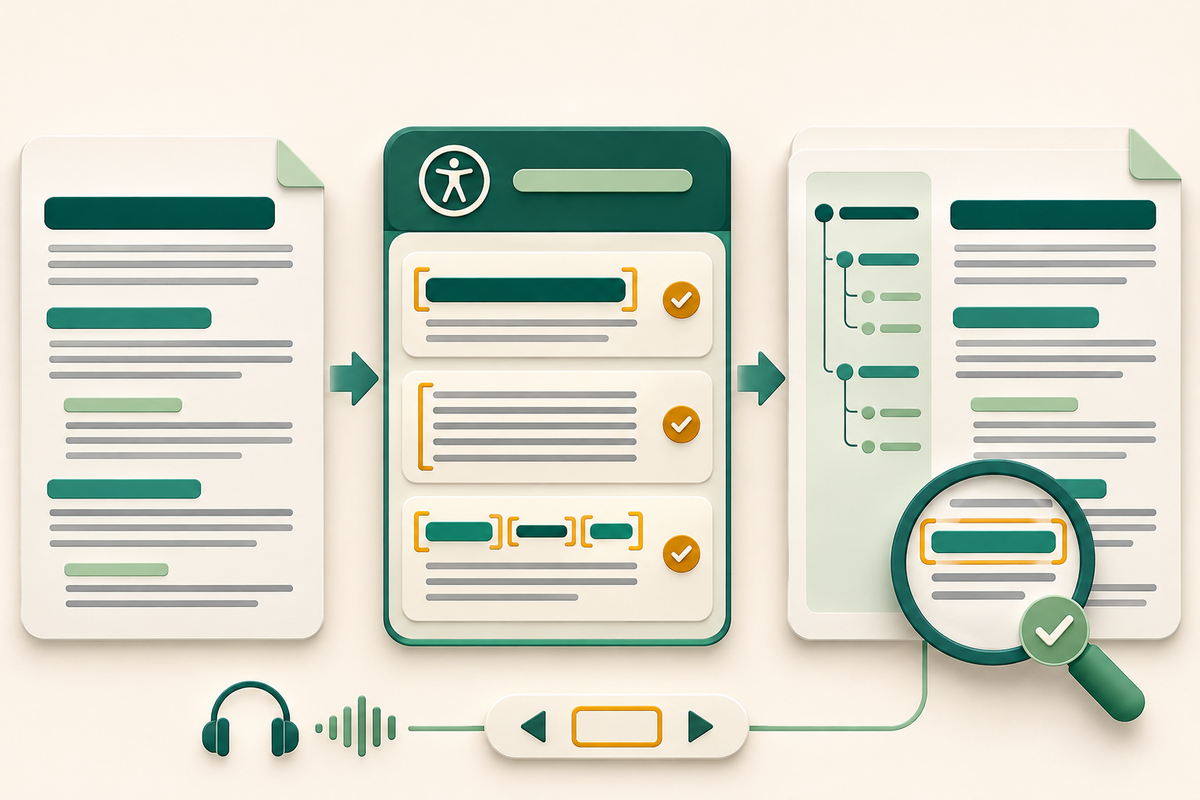
A heading that only looks bold and large may help a sighted reader scan the page, yet remain invisible to someone navigating by headings with a screen reader. Microsoft Word can now identify more of those structural gaps. The useful result is an earlier warning—not proof that the finished document or PDF is accessible.
What Microsoft released on 9 November
Microsoft announced improved heading detection in Accessibility Assistant on 9 November 2026. In Word for Windows, the Document Structure section can now flag three patterns:
- Missing required headings: three or more consecutive paragraphs after a page or section break with no heading.
- Visually styled headings: text that looks like a heading because it is larger or bold, but does not use a built-in Heading style.
- Multi-line headings: three or more consecutive paragraphs using the same heading style, which may be fragments of one intended heading.
Microsoft says the update is available to Microsoft 365 subscribers using Word for Windows Version 2610, Build 20620.20002 or later. Features roll out over time, so an eligible user may not see the rules immediately, and preview behaviour can be paused, changed or removed.
A source-to-PDF heading check
1. Run the source check first. In Word, open Review, choose Check Accessibility, then inspect Document Structure. Work in an authorised copy if the document is controlled. Do not flatten or convert the file before fixing the source; the editable document is where heading styles are easiest to correct.
2. Review every suggestion in context. Apply a built-in heading style only when the text is genuinely a heading. Add a concise heading when a long section needs one, and merge fragments when several styled paragraphs form one title. Reject a suggestion that would misrepresent the content. Automated detection is a prompt for judgement, not an instruction to accept every change.
3. Inspect the whole hierarchy. Use Word's Navigation pane to confirm that the outline is meaningful and follows the intended order. Check that headings describe the sections beneath them and that style changes are not being used merely to create a visual size. Re-run Accessibility Assistant after editing.
4. Check more than headings. A good outline does not repair missing alternative text, unclear links, table headers, insufficient contrast, document language or confusing reading order. Review those separately, and have a person using the relevant assistive technology test important documents when possible.
5. Export deliberately. Create the PDF through the organisation's approved Word export route, keeping document-structure tags and bookmarks where the supported settings permit. Open the exact exported file—not only Word's preview—and check the title, pages, links, selectable text, zoom behaviour and heading or bookmark navigation with an appropriate PDF accessibility checker and screen reader.
Important limits
The three new rules are heuristics. A section with fewer than three paragraphs can still need a heading, while a long section may be clear without another one. Passing Word's check does not certify conformance with WCAG or PDF/UA, and structure can be lost or changed during PDF export. Microsoft also describes this as a Word for Windows release, not a promise that the same detection is present in every Word app.
For an authorised PDF copy, FileStation's PDF Reader can support a visual page-by-page check. The OCR and accessible PDF guide explains why selectable text and a readable appearance are not the same as semantic structure. FileStation does not inspect PDF tags, certify accessibility or replace testing with specialist tools.
The practical gain is catching a common authoring mistake while the document is still easy to fix. The dependable finish is a separate review of the PDF that readers will actually receive.