
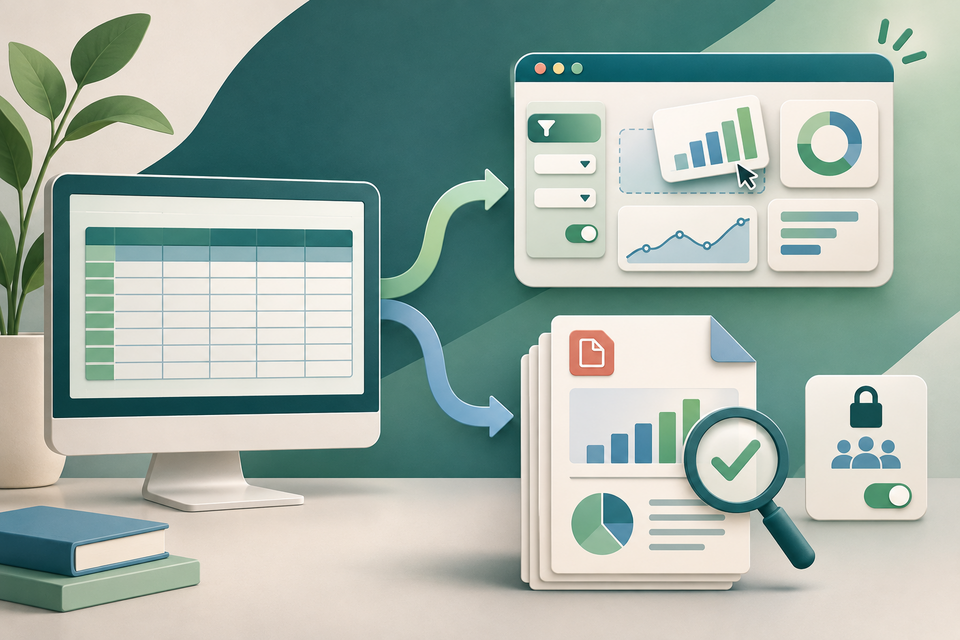
An interactive dashboard and a PDF can show the same project, yet answer different needs. The live view can filter and update; the PDF can preserve a fixed version for review, approval or a dated record. Google Sheets now makes the live route easier to share, which makes the choice—and the audience check—more important.
What Google released on 11 November
Google announced standalone links for Sheets canvas on 11 November 2026. A canvas turns spreadsheet data into an interactive mini-app such as a dashboard, kanban board or calendar. An editor can now publish that canvas to a separate read-only link without sharing the full source spreadsheet.
The published canvas has its own audience setting, so it can be visible to a wider group than the source file. The publisher can choose automatic republishing when the source changes or a static view based on the current state, then copy the link, change the audience or stop publishing. Google says publishing is currently available in Sheets on the web.
This is a gradual rollout: Rapid Release domains began on 11 November, while Scheduled Release domains start on 2 December, with up to 15 days for visibility. Availability is limited to listed paid Workspace and Google AI plans, and canvas creation and editing has per-user usage limits. Google also says there is no new admin control; the existing Drive setting for Publish to the web governs this feature.
Choose the handoff deliberately
1. Name the audience before publishing. Decide whether the view is for a small project team, the whole organisation or an approved external audience. Confirm the selected canvas audience separately from the spreadsheet's sharing list. “Read-only” prevents editing; it does not mean “private.”
2. Remove data the audience should not see. Check filters, hidden columns, labels, notes and drill-down views. A canvas may reveal a useful summary without exposing the source sheet, but the published information can still be copied, photographed or misunderstood. Use synthetic data for demonstrations.
3. Choose live or static behaviour. Automatic republishing suits a status board only when every approved source change should appear. A static published view is safer when the audience needs one reviewed state. Record the owner, publication date and reason for the choice.
4. Test from outside the editing account. Open the published link as a representative viewer. Check filters, mobile layout, empty states and whether any visible link leads somewhere the audience cannot or should not reach. Stop publishing when the purpose ends.
5. Create a separate fixed record when required. The announcement describes canvas links, not a guaranteed PDF export or archive format. If a policy, customer or assessor needs a fixed document, create an approved PDF snapshot from the underlying report or a controlled print/export route. Add a clear date and scope, then compare totals, labels and visible sections with the reviewed canvas state. Interactive controls may become static, clipped or omitted.
Important limits
A published canvas is not evidence that the underlying data is accurate, complete or authorised for that audience. A static published view can still be replaced later, while a downloaded PDF can become outdated. Neither route automatically provides accessibility, retention or legal-record compliance. Organisations should apply their own data-classification, sharing and records rules.
Once an authorised PDF exists, FileStation's PDF Reader can support a page-by-page visual check, and the CLEAR document check offers a simple final-review routine. FileStation does not connect to Sheets canvas, control its audience or validate spreadsheet data.
The useful distinction is simple: publish a live view when people need current interaction; prepare a checked PDF when they need a stable document. Treat them as two controlled outputs, not interchangeable copies.