
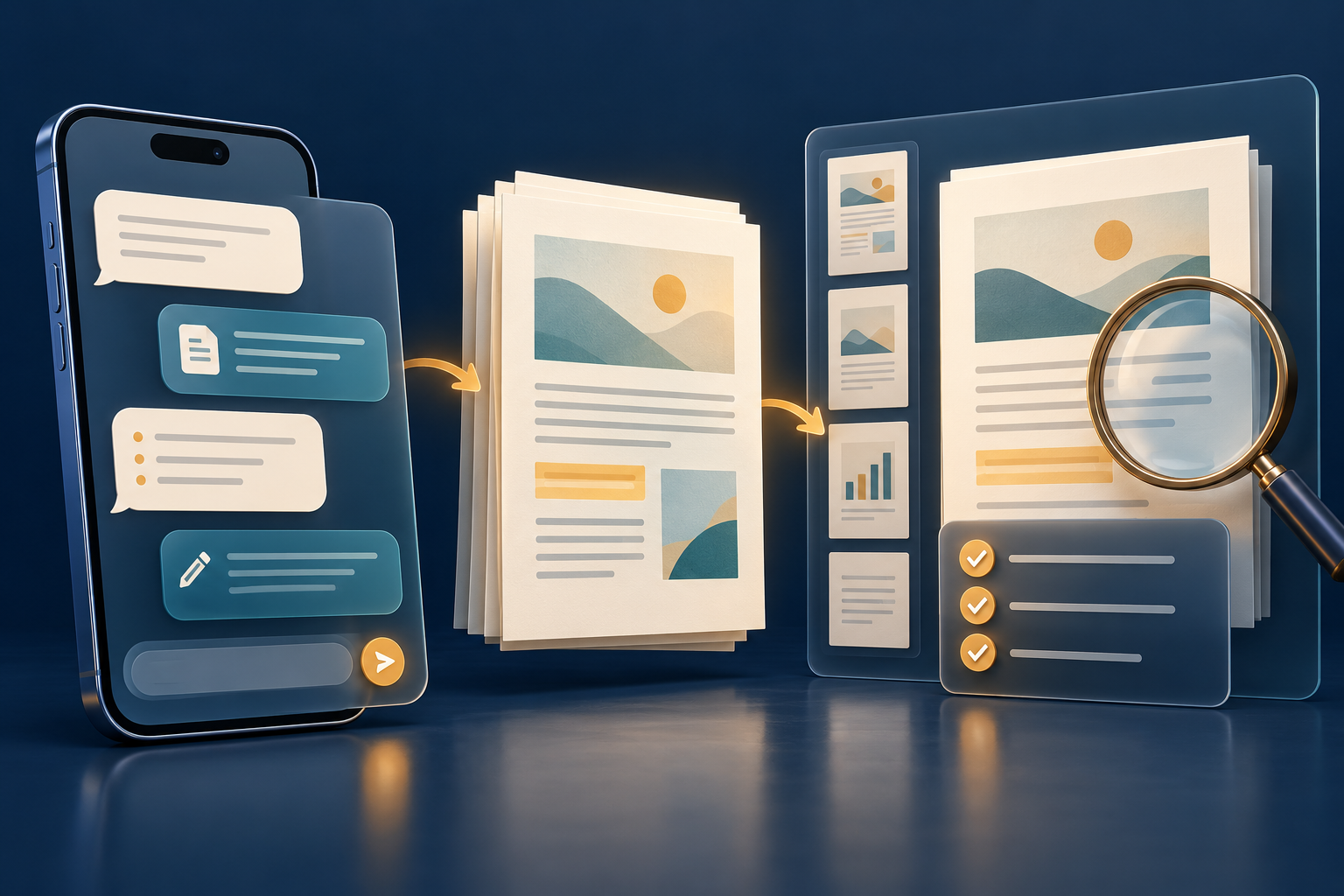
Editing a PDF through a conversation can be convenient on a phone: highlight a section, request a clearer explanation and keep working without moving between several apps. The final document still needs a different kind of attention. A helpful chat response is not proof that every page, link, field or source survived the edit.
What Google released
On 29 October 2026, Google announced file preview and editing inside the Gemini app. Users can generate a file in a chat, expand it to full screen, type changes directly, highlight content for questions or ask Gemini to revise it.
PDF preview and editing are supported on both web and mobile. Other listed formats—including documents, spreadsheets, slide decks, Markdown, TXT and code—are web-only. Google also describes generating a PDF study guide from uploaded handwritten lecture notes, then editing its text or visuals.
Google says the capability is available now to Workspace customers, Workspace Individual subscribers and personal accounts, in languages where the Gemini app is available. There is no separate admin switch for this feature, although an organisation can control access to the Gemini app itself.
A source-to-PDF review workflow
1. Keep the original. Work from a copy of the authorised source file. If the PDF contains a signed agreement, official result or approved record, confirm whether editing is permitted. Changing a digitally signed PDF can invalidate its signature.
2. Define the change before requesting it. Name the pages or sections, intended audience and facts that must remain exact. For a study guide, distinguish wording that may be simplified from quotations, equations, dates and references that need direct comparison with the source.
3. Review each proposed edit against evidence. Read the changed passage beside the original notes or document. Check names, figures, units, links and claims. A smoother explanation can still introduce a plausible mistake or remove an important qualification.
4. Inspect the whole document, not only the highlighted area. Look for shifted page breaks, duplicated paragraphs, cropped images and headings separated from their content. On a phone, zoom out to review page structure as well as zooming in to read the words. Check the first and last page and every transition around an edited section.
5. Download and reopen the exact result. Save the PDF with a clear revision name, close the editing view and open the downloaded copy in another suitable reader. Confirm page count, orientation, fonts, image quality, selectable text and working links. Test form fields or annotations only when the recipient needs them.
6. Check accessibility and release requirements separately. A PDF that looks correct is not automatically tagged for a screen reader or arranged in a meaningful reading order. If accessibility, archival conformance, encryption or formal approval matters, use the organisation's required specialist checks before release.
Limits worth keeping visible
Google's announcement does not promise that every existing PDF feature will be preserved. It does not claim full retention of forms, embedded files, annotations, accessibility tags, complex fonts or digital signatures. Test the actual document rather than assuming that “PDF editing” covers every PDF workflow.
Only upload material you are authorised to process in the Gemini app. An AI-assisted edit does not verify the document's facts, ownership or suitability for a recipient. Keep the source and final approved copy under the normal records process.
After downloading an authorised result, FileStation's PDF Reader can support a page-by-page visual check. If page order needs attention, use Organize PDF on a working copy and inspect the new export again. FileStation does not connect to Gemini, validate its edits or certify accessibility.
The useful improvement is being able to draft and revise a PDF from a phone. The reliable workflow still ends with a human checking the file that will actually be shared.