
A PDF application can fail before anyone opens a document if one required component is missing. That matters on managed laptops, classroom computers, shared desks and offline workstations, where people may not have permission or network access to install an extra runtime. Adobe's November Acrobat release makes a dependency check worth adding to the rollout plan.
What changed with the November release
Adobe published Acrobat and Reader 26.003.22075 as a planned update on 2 November 2026. For new 64-bit Acrobat and Acrobat Reader installations on Windows, Adobe says Microsoft Edge WebView2 Runtime version 131 or later is now required. The change supports a move away from bundled Chromium Embedded Framework binaries towards a WebView-based architecture for HTML views inside the application.
The scope is narrower than “every Acrobat user must act now.” Adobe's deployment announcement says existing installations are not affected immediately, and the requirement does not apply to 32-bit versions. Many Windows 11 systems already include the runtime; a fresh installer should prompt when it is missing. A prompt is not enough for locked-down or disconnected devices, however.
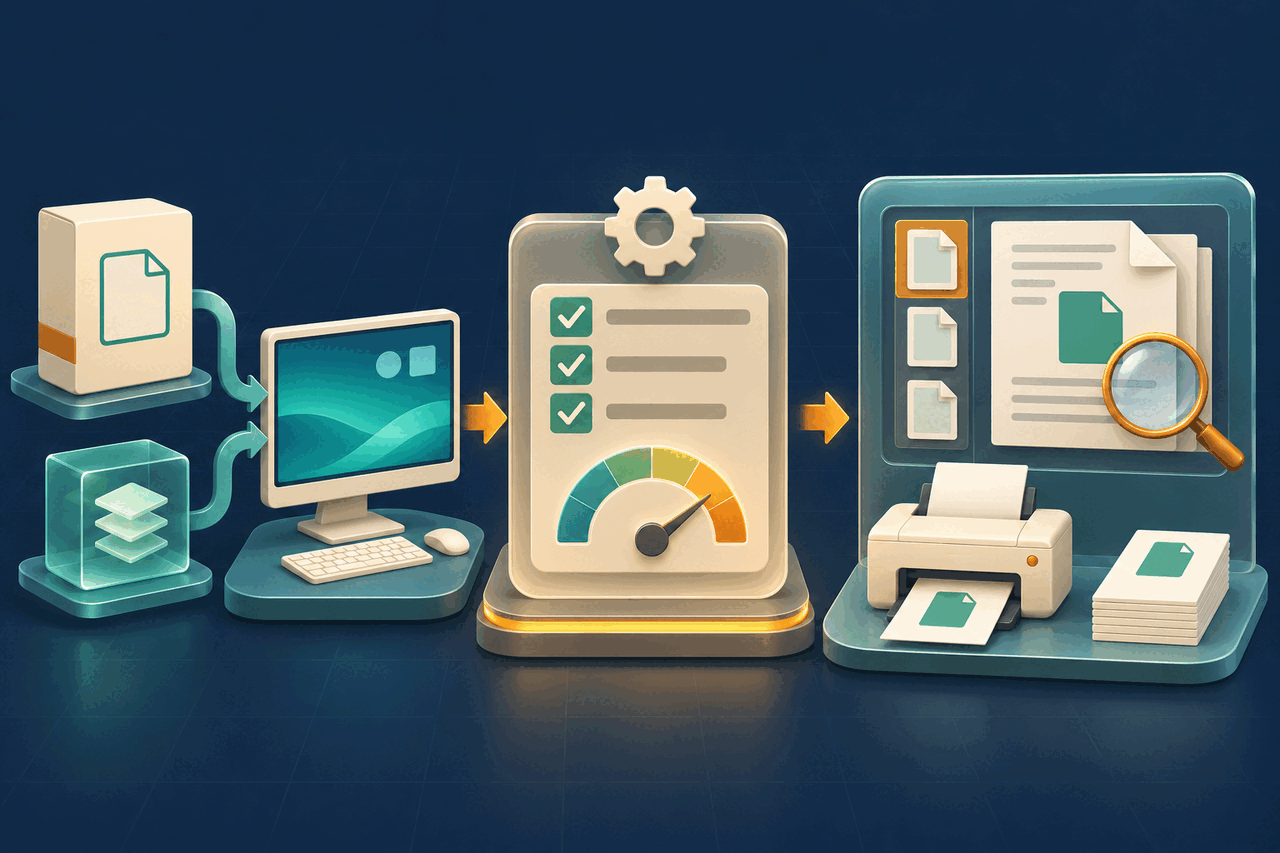
A practical rollout check
1. Identify the actual installation path. Separate existing devices receiving an update from machines getting a fresh 64-bit installation. Include reimaged PCs, virtual desktops, training rooms and replacement laptops. Confirm the supported Windows version from Adobe's current system requirements rather than assuming that WebView2 compatibility alone makes the whole Acrobat setup supported.
2. Inventory the runtime. Use your approved endpoint-management or software-inventory method to confirm that WebView2 Runtime is present and meets Adobe's stated minimum. Do not confuse the runtime with the Microsoft Edge browser; Microsoft documents WebView2 as a separate production component.
3. Choose an online or offline package deliberately. Microsoft's WebView2 distribution guidance describes an Evergreen Bootstrapper for connected devices and a full Evergreen Standalone Installer for offline deployment. Obtain installers through the official vendor route, validate them under your organisation's software policy and avoid copying old packages between devices without version control.
4. Stage the complete install. On a representative managed device, install the runtime and the exact Acrobat or Reader package planned for production. Test standard-user launch, restart behaviour and the update process. Microsoft notes that Evergreen Runtime updates separately and that a continuously running application can keep using its previous runtime until it restarts.
5. Exercise real document tasks. Open a long PDF and a scan; search and select text; zoom and rotate; complete a test form; open an approved attachment; print or save an authorised sample; and exercise any supported signing, accessibility or document-management integration your team depends on. Reopen every output you intend to rely on.
6. Record the result and rollback route. Keep the tested application, runtime and plugin versions with the device group and date. Define what support staff should do if the runtime cannot install, the application cannot launch or a specialist workflow changes. Do not treat installing an unapproved 32-bit edition as an automatic workaround.
What this does not prove
WebView2's presence proves only that a dependency is available. It does not prove that Acrobat is correctly licensed, that every plugin works, that a PDF is accurate or accessible, or that a document is safe. Adobe says supported plugins and scripts are not expected to be affected, but a representative test is still more useful than that expectation.
For an authorised test file, FileStation's PDF Reader can provide a separate browser-based visual check, and the CLEAR document check offers a simple release routine. FileStation does not install WebView2, replace Acrobat or certify desktop compatibility. Keep confidential documents inside the environment approved by your organisation.
The useful habit is to test the dependency and the document workflow together: successful installation is the starting point, not the final acceptance result.