
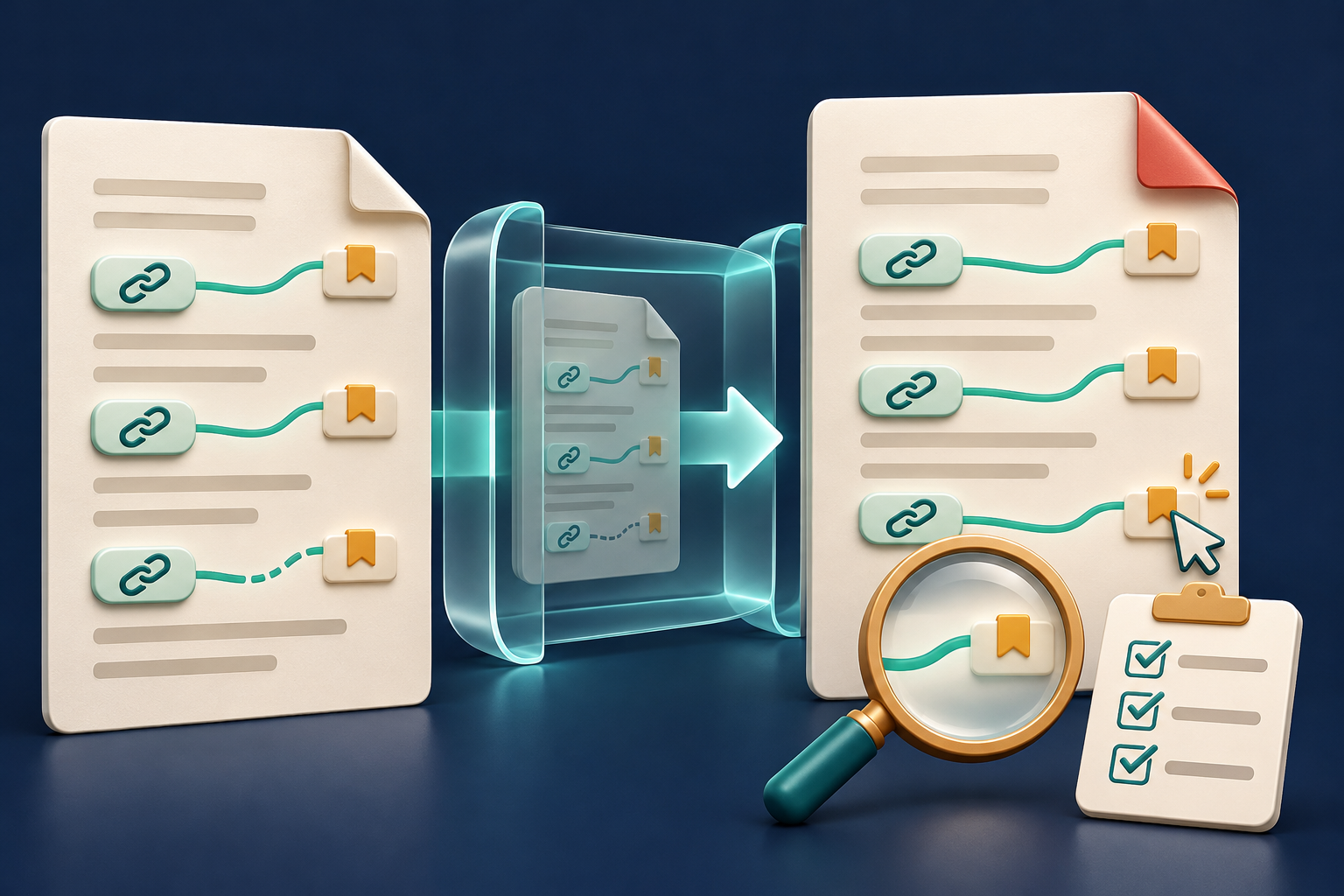
A PDF can look perfectly normal while its navigation is broken. A table of contents, bookmark or link may be visible but fail when the recipient clicks it. LibreOffice's latest maintenance release fixes one such export problem—and gives document teams a useful reason to test the actual PDF rather than trusting the source file.
What LibreOffice fixed on 3 November
The Document Foundation released LibreOffice 26.2.7 on 3 November 2026. Its release record identifies a fix for named hyperlinks not working when exporting to PDF. The update also addresses DOCX round-trip problems, presentation audio, a macOS startup crash and other defects.
The wording matters: this is a specific named-hyperlink regression, not a claim that every possible link problem has disappeared. LibreOffice's PDF export help says hyperlinks are normally exported automatically and documents separate options for named destinations, converted document references, relative file URLs and cross-document links. Each type can fail for a different reason after a file is moved, renamed or opened in another viewer.
A practical hyperlink check before sharing
1. Identify the links that matter. Make a short test list: external web URLs, internal table-of-contents entries, bookmarks or named destinations, email links and links to other documents. Include at least one example of every type used in the file.
2. Preserve the editable source. Update LibreOffice through your approved process and work on a copy. Record the application version and keep the last accepted PDF so you can compare behaviour and page layout.
3. Export with the intended settings. Use the same PDF export route, page range and Links-tab choices planned for the final document. Printing to PDF is a different workflow and may not preserve the same navigation features.
4. Test the exact downloaded file. Close the source application, reopen the final PDF and click every link on the test list. Check the destination page or website—not only whether the pointer changes shape. Confirm that a table-of-contents entry lands on the correct heading and that browser links use the intended address.
5. Repeat after moving the package. Relative and cross-document links can depend on filenames and folder structure. Copy the final delivery set to a clean folder or test device, then check again. Never use confidential production links in a public test.
6. Try a second viewer. PDF applications and browsers may handle links differently or block some actions for security. Test the viewer used by the recipient when that is known, and keep a visible written address for critical external resources.
Important limits and the next upgrade
Installing 26.2.7 does not repair PDFs that were already exported; those need to be recreated from an approved source and checked again. The fix does not prove that a PDF is accessible, that its destinations are current, or that a viewer will allow every link. It also does not cover unrelated layout, font, form, signature or conversion problems.
This is the final release in the LibreOffice 26.2 branch, which reaches end of life on 30 November 2026. Organisations should therefore treat 26.2.7 as a maintenance step while planning and testing a move to the 26.8 family, not as a long-term stopping point.
For the handoff stage, FileStation's PDF Reader can support a page-by-page visual review, while the CLEAR document check provides a simple release routine. FileStation does not update LibreOffice, repair hyperlink annotations or certify that every destination works. The dependable check remains a controlled export followed by a real click-through of the exact file you intend to send.