
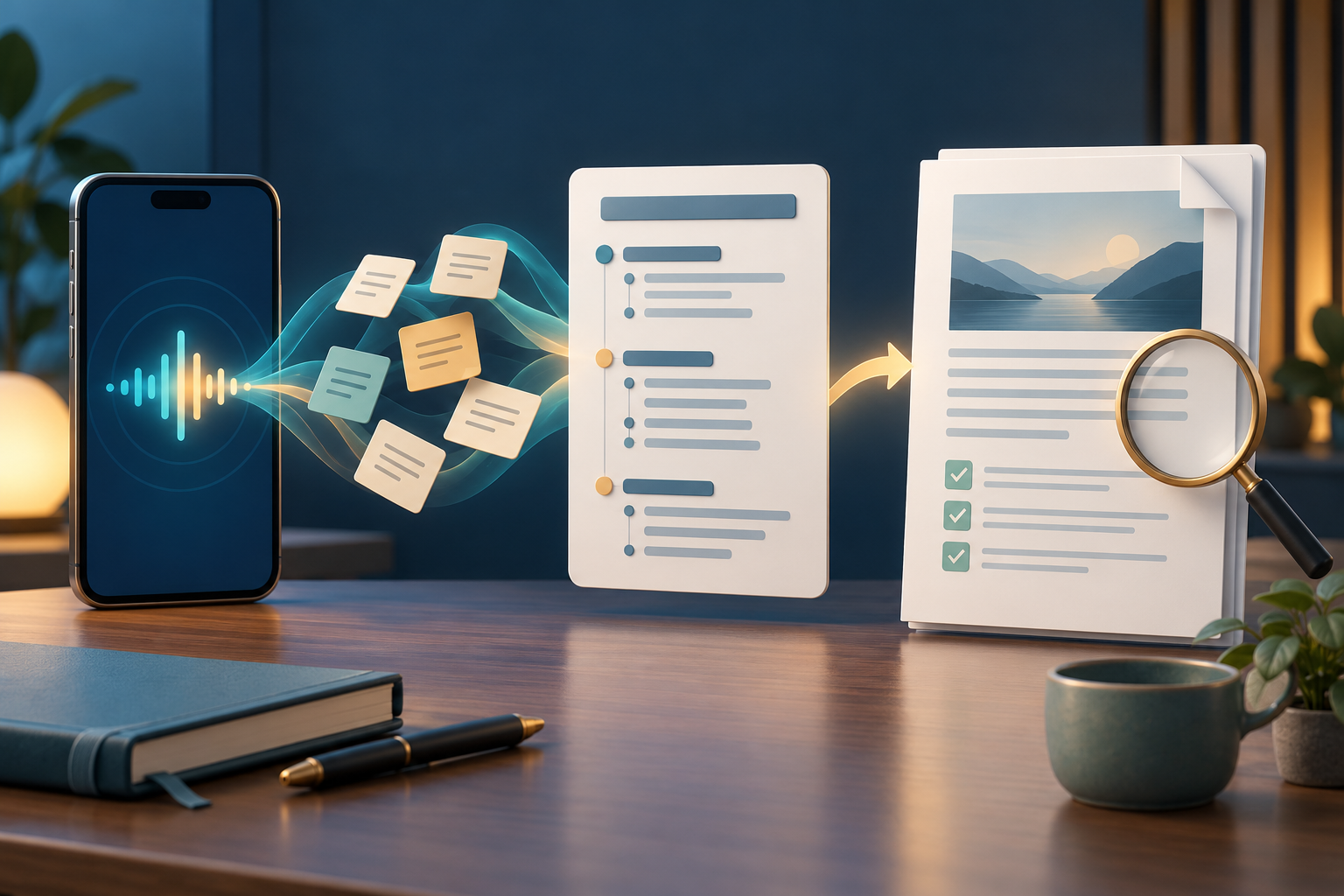
Speaking a project update into a phone can be faster than typing it. It can also hide small mistakes: a similar-sounding name, a number recalled from the wrong email or a confident paragraph built from an outdated file. Google Docs Live offers a useful mobile starting point, but the document still needs a deliberate handoff from conversation to checked PDF.
What Google rolled out
On 21 October 2026, Google announced that Docs Live was available to eligible Workspace users in the Google Docs app on Android and iOS. A user can talk through an idea, review an initial plan and ask Gemini to create or revise a structured document.
Google says the feature can use relevant context from Gmail, Drive, Chat and the web. Its Docs help page explains that source settings let a user add specific files or choose locations Gemini may search. That makes source selection part of the drafting task, not something to think about only after the words appear.
Availability is limited. Google lists selected Business, Enterprise, Education add-on and consumer AI plans, with Gemini in Docs controlled by administrators. The help page says Docs Live is currently mobile-only and English-only. An announcement therefore does not prove that every account, language or organisation can use it.
A voice-to-PDF review workflow
1. Decide the document's job. Before speaking, state the audience, purpose, deadline and desired sections. Separate facts that must be exact from ideas that are still provisional. A project update and a customer commitment should not use the same review standard.
2. Choose sources deliberately. Add the approved meeting notes or current project file instead of asking the system to search broadly by default. Check filenames, owners and revision dates. If web material is used, record the page and access date because online information can change.
3. Inspect the plan before generating prose. Confirm that required sections are present and unrelated material is absent. Remove sensitive detail that does not belong in the deliverable. A tidy outline can still be based on the wrong source.
4. Read facts aloud against the originals. Verify names, dates, totals, links, decisions and attributed statements. Review unclear speech-to-text terms carefully. Treat generated wording as a draft; neither natural conversation nor polished formatting proves accuracy.
5. Review the document structure. Use real headings and lists in the editable source. Add useful link text and descriptions for meaningful images. A visually neat mobile page does not establish correct reading order or accessibility.
6. Export and inspect the exact PDF. Check page breaks, margins, headings, tables, links and the last line of every page. Open the saved file on an ordinary phone and desktop, then confirm its filename and revision before sharing. Keep the editable source separately.
Limits worth keeping visible
Docs Live can help organise a first draft; it does not approve the facts, replace a subject expert or certify a PDF as accessible. Pulling context from an account also does not mean every available source is current, relevant or permitted for the document. Follow the organisation's rules for confidential material and AI-assisted work.
FileStation fits after an authorised PDF has been exported. Use PDF Reader for the page-by-page visual check, then follow the CLEAR document check before release. FileStation does not connect to Docs Live or verify the draft's sources.
The useful habit is to let voice accelerate the first version—not the final decision. A shared PDF should still be the result of selected sources, human review and one last check of the file the recipient will actually open.