
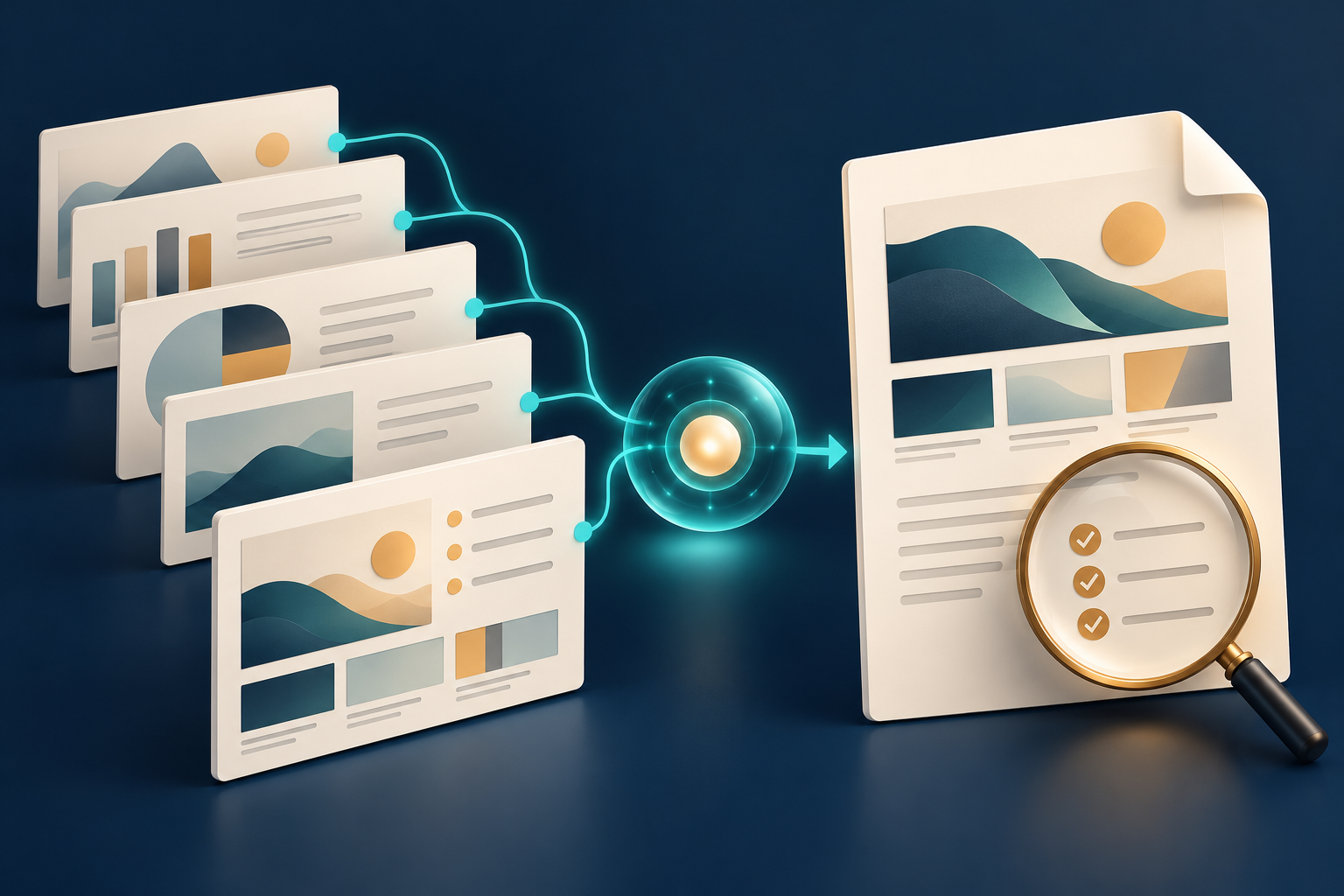
Changing one slide is easy to inspect. Changing an entire presentation with one instruction is different: a shorter sentence, new visual style or combined section can affect dozens of pages before the reviewer notices. Google Slides now offers that broader edit, so the safest time-saving workflow pairs it with version history and a deliberate final PDF check.
What Google released
On 30 October 2026, Google announced whole-presentation editing with Gemini in Slides. A user can ask the Slides side panel to update multiple slides or the entire deck. Google gives examples including changing fonts and backgrounds, revising content from a Drive reference, combining slides, adding slides and making title styles consistent.
Edits are applied to native, editable slides. When the task finishes, the side panel shows a summary, and Google says the changes can be reviewed or reversed with Undo or version history. Rollout started on 29 October and may take longer than 15 days. The launch is English-only and limited to listed Business, Enterprise, education add-on and consumer AI plans. Google also says promotional higher limits for multi-slide creation last through at least 1 December; per-user limits will follow.
Google's Slides help page adds two useful limits: the broader Gemini presentation experience is currently desktop-only, and Google warns that the system may not support every request. Feature access and results therefore need to be checked in the actual account rather than assumed from the announcement.
A whole-deck review that scales
1. Create a named baseline. Before the prompt, make a copy or name the current version in version history. Record the purpose, audience and approved source files. This gives the reviewer a real before-and-after reference instead of relying on memory.
2. Constrain the instruction. State what may change and what must remain exact. For example: simplify body text and align title styles, but preserve quotations, figures, citations, speaker notes and the legal notice. A precise instruction reduces ambiguity; it does not remove the need to check the result.
3. Read the change summary, then inspect the slides. A summary is an index, not evidence that every edit is correct. Compare changed slides with the baseline. Check names, dates, totals, units, links, source attributions and claims. Confirm that combining slides did not remove an exception or qualification.
4. Review presentation structure. Use the thumbnail view to check slide order, missing or duplicated pages and visual consistency. Then inspect individual layouts for cropped text, low contrast, small labels, overlapping objects and images that no longer match the message. Check speaker notes separately if the presenter relies on them.
5. Export and reopen the final PDF. Create the PDF through the team's approved Slides workflow. Open the saved file rather than trusting the editing canvas. Verify page count, page size, fonts, images, links, charts and content near the edges. Remember that transitions, animations, video and other interactive behaviour do not become equivalent interactive PDF content.
Limits that stay with the human reviewer
Google's release does not claim that Gemini verifies facts, preserves every layout perfectly or certifies accessibility. A correct-looking slide can still use the wrong source, and a visually tidy PDF can still have poor reading order or missing alternatives for images. Confidential material should be handled under the organisation's approved Workspace and AI policies.
After an authorised PDF is exported, FileStation's PDF Reader can support a separate page-by-page visual check. The CLEAR document check provides a short final-review routine. FileStation does not connect to Gemini, audit its slide changes or certify accessibility.
Whole-deck editing can remove repetitive work. Its value is highest when the saved baseline, source check and final PDF make the result easier—not harder—to trust.