
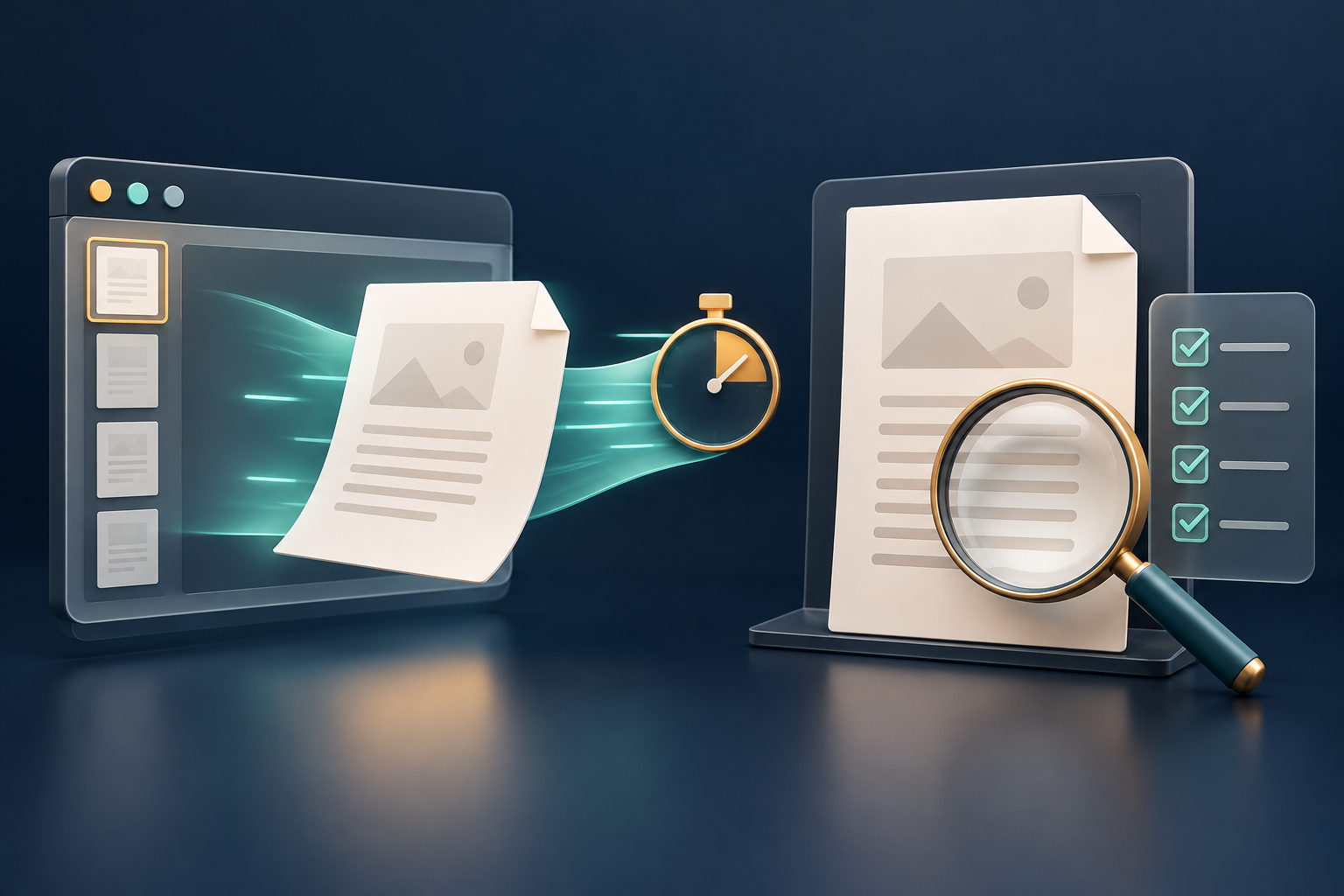
Opening a PDF in a browser is often the fastest way to check a timetable, invoice or report. A shorter wait is useful, especially when staff review many files, but a quick first page does not prove that the whole document loaded correctly or that every feature works. Mozilla's latest Firefox update is best treated as a performance improvement followed by the same careful file check.
What Mozilla announced
On 27 October 2026, Mozilla said that Firefox's built-in PDF viewer now starts up to 45% faster on desktop. Mozilla describes the benefit as less waiting when a PDF opens in the browser.
The wording is deliberately narrow. “Up to” describes a best observed improvement, not a promise for every computer or file. The announcement does not publish the benchmark machines, PDF sample set, Firefox versions compared or full measurement method. It also does not say that a PDF downloads 45% faster, that every page renders faster or that conversion, printing and editing are quicker.
Test the improvement in a useful way
1. Record the environment. Note the Firefox version, operating system, device and whether an organisation controls the browser through policies. Update through the approved route. A managed computer may use a different PDF handler or extension from a personal installation.
2. Separate network time from viewer time. Test a local copy as well as an authorised online file. A slow server, weak connection, authentication step or encrypted download can delay the browser before its viewer starts. Do not attribute the entire wait to PDF rendering.
3. Use representative documents. Include a small text PDF, a long report, an image-heavy scan and, if relevant, a form or annotated document. Use synthetic or non-confidential samples for comparison. One easy file cannot represent the organisation's real workload.
4. Measure the moment that matters. Decide whether success means the first page is usable, thumbnails are ready, search works or the final page has rendered. Repeat the same test several times and compare the middle result rather than choosing the fastest run. Browser cache, background processes and device temperature can change timings.
5. Check the PDF after it opens. Confirm page count, orientation, fonts, images, selectable text, links, form fields and annotations. Try search, zoom, printing and download where the workflow needs them. A faster startup is not evidence that every interactive or accessibility feature survived.
6. Keep an approved fallback. If a specialist PDF requires signatures, advanced forms, colour management or formal accessibility inspection, use the organisation's approved application. A browser viewer is convenient, but it is not automatically a replacement for every desktop or compliance tool.
Important limits
Performance will vary with hardware, document complexity, extensions, security software, browser settings and network conditions. Mozilla's figure comes from Mozilla; the announcement alone is not an independent benchmark. Faster opening also says nothing about whether a file is genuine, safe, accessible or factually correct.
After an authorised PDF is available, FileStation's PDF Reader can support a separate page-by-page visual check. The earlier guide to PDF.js 6.4 browser-PDF changes provides a broader compatibility checklist. FileStation does not benchmark Firefox or guarantee identical rendering across browsers.
The practical gain is simple: spend less time waiting where the improvement applies, then spend the saved time checking the document the recipient will actually use.